
Welcome to the toro examples gallery! These interactive examples demonstrate how to create powerful map visualizations using toro.
Use the navigation menu on the left to explore all available examples, or click the links below to jump to specific examples:
Sources
Sources are required to add data to your map.
Add a GeoJSON/sf source
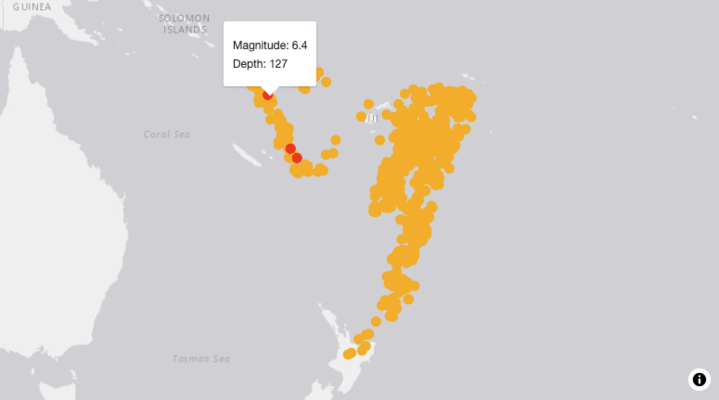
Add a data source from a GeoJSON file (sf object
or GeoJSON string).
Add a feature service source
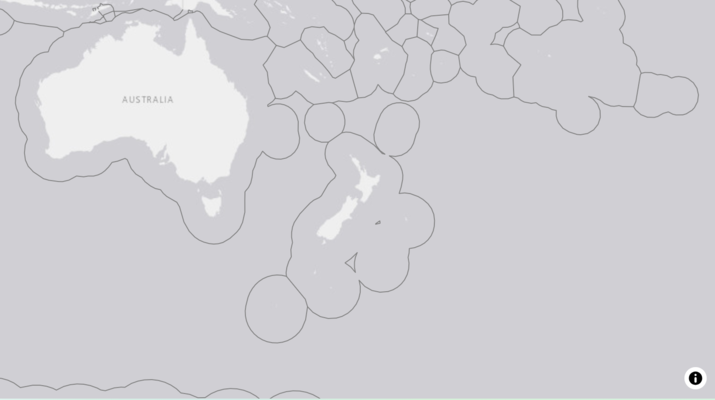
Add web based features (e.g. ArcGIS data layers)
to your map as a source for additional layers.
Add an image source
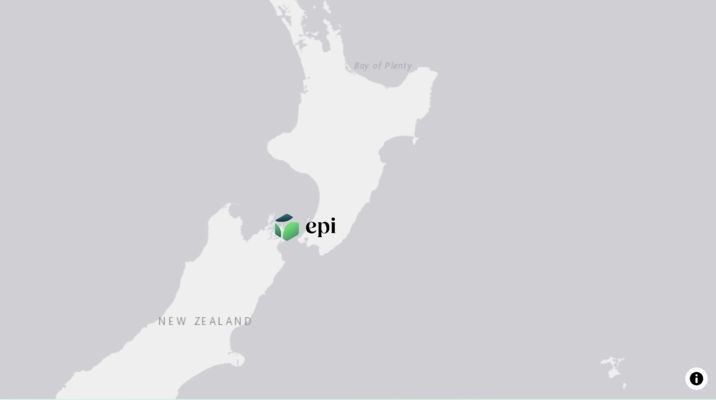
Add static images (png, svg, gif, jpg) to your
map from a local file or web URL.
Layers
Add a fill layer
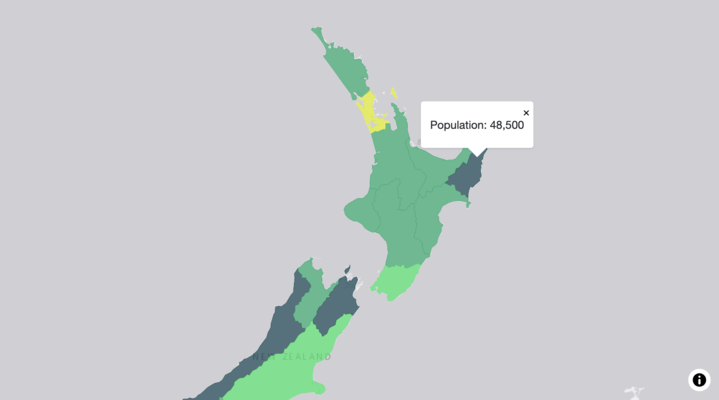
Adding shapes / complex geometry to your map and
rendering the shapes based on attributes in the data (e.g. colour by
population).
Add a line layer
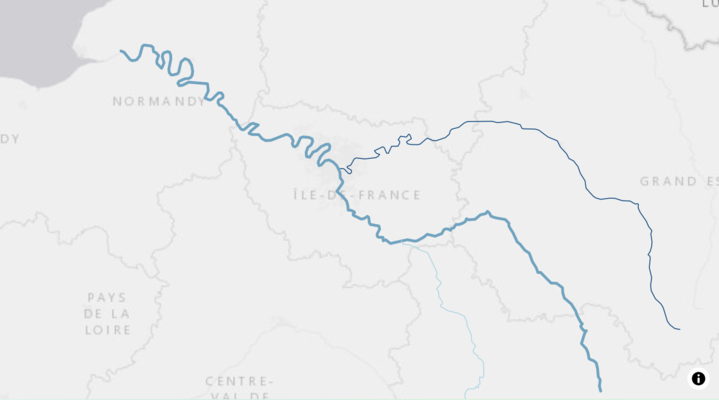
Adding lines (collection of points) to your map
and customising their appearance.
Add a circle layer
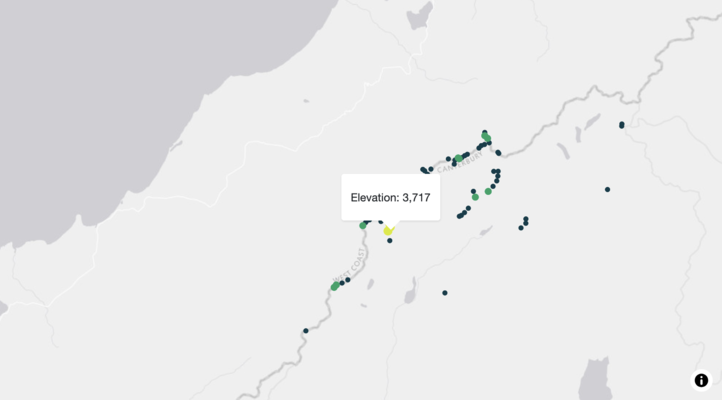
Adding circles to your map and customising their
appearance.
Add a symbol layer
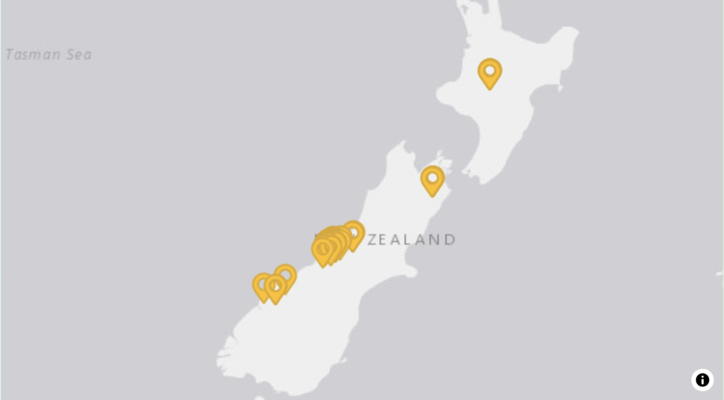
Adding customised image based markers (from
image source) to your maps.
Add a text layer
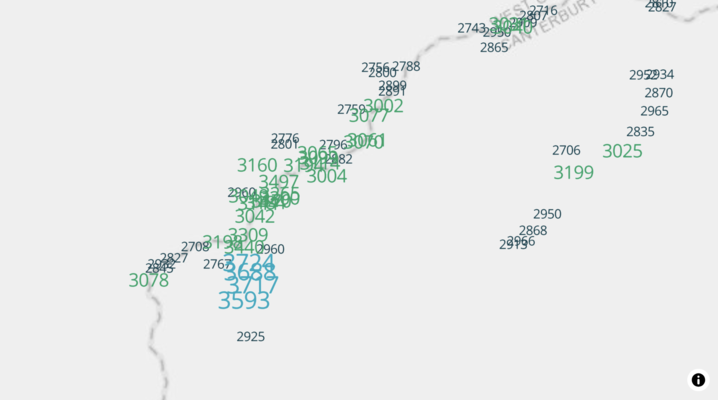
Adding descriptive text or data attributes to
the map, based on coordinates.
Latitude and longitude grid
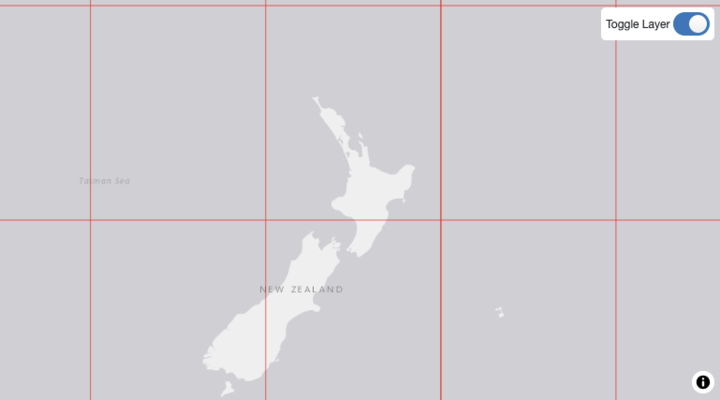
Showing a reference grid of latitude &
longitude on the map, overlaying other features.
Controls
Draw control
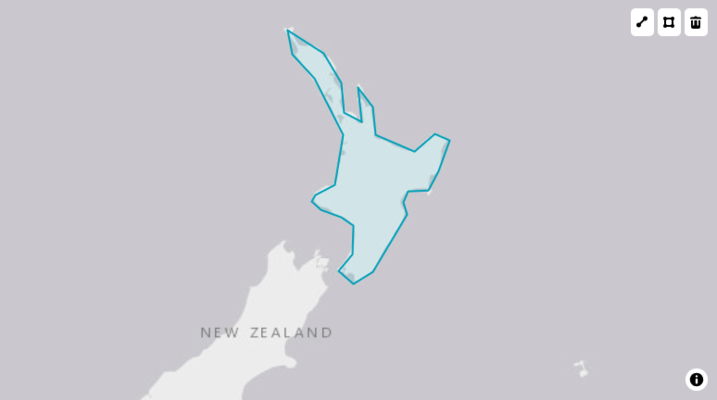
Enabling functionality to create new shapes /
lines on your map.